Saturday, 19 July 2014

7 Reasons Your Business Needs A Blog

While it is possible to run a successful business without a blog, it sure is handy to have hundreds of potential customers milling around your blog waiting to hear your witty status updates and see behind-the-scenes photos of your life. While you’re in the stages of starting up, take a little time each day and devote it to writing blog posts and getting a wicked-awesome blog designed. Trust me, it comes in handy. Here’s how: 

1. MAKING CONNECTIONS
Try not to view your competitors as your evil arch enemies. They‘re just down-to-earth creative girls like you, on a mission similar to yours! Embrace that. Go out for a coffee with them, skype them, start a Google + hangout with them and learn from them. If they are swamped with work one month, they may refer someone they can’t work with to you. Referrals from friends in the business is a great way to get work.  

2. MEETING POTENTIAL CLIENTS
Many of my design clients were my blog readers first. How exactly do you turn a reader into a client? Self promotion! Let your readers know (but not in a spam kinda way) what you do, provide them with links to your shop/portfolio and give

10 Things You Don’t Need in Your sidebar (Blogger and WordPress)

Your blog content is the star of the show, right? Those beautiful photos, helpful tips, quick tutorials… They are the things you want to draw readers in to and hook them on. So why are you overshadowing your content with a messy sidebar?

Your sidebar should align with your blogs goals and priorities. It should look simple and clean instead of cluttered and confusing!

10 things you don’t need in that sidebar of yours:
1. A list of blogs you love. It’s nice to support bloggers you love by linking to them, but the hard truth is that readers will click those links, leave your site, and most likely forget to return because they’re totally transfixed by the blog you’ve pointed them to.

2. A section on ‘things you love’, like t-shirts from Target and sunnies from Modcloth.  Unless you’re a fashion blogger who is being paid to promote these items in your sidebar, you have to ask yourself if it’s really necessary.

3. A mini slideshow of your Instagram feed. I totally get why people add this and it does add personality and realness to your blog, to some degree. But if you don’t use Instagram much, then please remove it from your sidebar. It distracts readers from more important things, like signing up for your newsletter or following you in a reader!

4. A never-ending list of categories. Keep it simple and stick to 5 or 6.

5. A never-ending list of archive links. If you’ve been blogging for a long time, then have a drop down archive option to keep your sidebar looking simpler (and a lot shorter!)

6. Counters. How many people visit your site is of no concern to your readers, so think about removing counters from your sidebar and keeping up with stats through Google Analytic instead.

7. A disclaimer. I personally prefer to put disclaimers in the blog footer and keep the extra sidebar space for more useful things, like follow buttons or social media buttons!

8. A social media plugin to a social media site you barely ever use. If you don’t use Twitter but you have a Twitter feed in your sidebar, remove it to avoid wasting your reader’s time. Find a social media site that you use regularly and steer your readers in that direction. It’ll benefit them a ton more!

9. Embedded media. Embedding too many things (like YouTube videos) in your sidebar can really slow down your blog. And what do people do when you site takes longer than 10 seconds to load? They leave, sadly enough.

10. Blog awards that no one has heard of. Remove anything like this from your blog because it gives a ‘naive and amateur’ impression. It’s nice to have and give blog awards, but most people will sadly not pay any attention to them. Unless you were awarded by Teen Vogue or ProBlogger or something. Then maybe you can keep those up there. ;)
 

Tuesday, 15 July 2014

Creating facebook App for Website that doesn't support HTTPS

Have you ever tried to create a new Facebook App for your website which doesn't have HTTPS support?
Even you can't create a Facebook Page tab for pointing to your website without HTTPS support! The working of this trick is described in the following picture.
I am going to show you how to create any Facebook app for your website without HTTPS support.
For that you need to create a Google site and embed an iframe in it to point to your website.
This is because Google site provides HTTPS support.

Step 1:
Create a Google site. If you already have a Google site, skip this step.
Sign in to your Google account and go to Google site (Follow the link in new tab).
Click on "Create site".
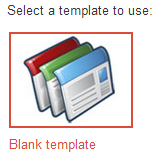
Choose a Blank template.


This is because you are going to embed only an iframe that points to your website. Hence a good looking template for your Google site does have no deal for you.

creating Google site

After choosing a blank template, enter a site name and click on "Create".

Step 2:
Once your site is created, edit the home page.
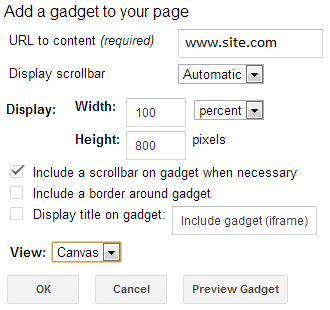
Go to Insert->More Gadgets and choose iframe widget as shown below.

Now enter your website url in the URL field.


Save the changes and test your newly created google site.

Step 3:
If you did the above two steps correctly you night see your website home page inside the newly created site.
Also note that header and footer of google site are visible.
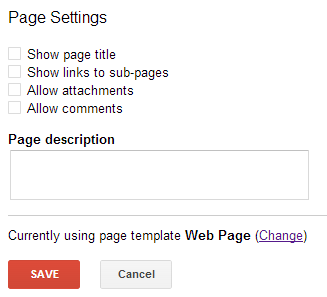
Press 'u' key, and the following dialog is displayed.


You can hide the header and footer easily. Just un-check all options as shown above.

Step 4:
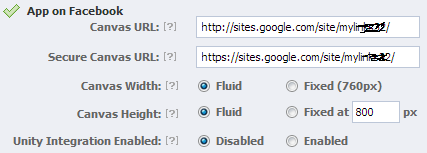
Create a new app for Facebook with your new Google website. Go to Facebook Developer Page.


Now you are able to enter both HTTP and HTTPS.

>>>> share if you like <<<<

How To Download From Youtube Using Portable Tiny YouTube Video Downloader

Youtube Fisher Logo
In case You have been trying to download from Youtube For A very Long Time, Here Is an Application that will help you download video and extract music without any stress. it called YouTube Fisher is one of the Portable YouTube video downloader. It's an open source project.


I mentioned it is portable because:
  1. Small in size (44 kB) only but yet rich in features.
  2. No need to install.
  3. Support for Audio Extract
  4. Open Source (hence free with source code)

ScreenShot:

http://oluinfotech.blogspot.com/2014/07/how-to-download-from-youtube-using.html

Go to YouTube Fisher's homepage to download.

Supported formats:
  • For video: IsoMedia 3D, 4K resolution, Full-HD (1080p), HD (720p), HQ MP4, WebM, FLV and Mobile 3GP
  • For audio: AAC and MP3

Stable version is v3.2

Operating System:
  • Windows 2000/XP/Vista/7/8
Requirements:
  • Microsoft .Net Framework 2.0 or higher (if you have Windows Vista or 7, you already have it)
  • About 44 KB of free disk space for the application and lots of GB's for your downloads

Go to YouTube Fisher's homepage to download. To contribute to this open source project click here.

>>>> share if you like <<<<

How to Add Tiny URL Shortening Widget To Your Website

In this blog post, I show you how to add Tiny URL shorten-er widget for website or Blog. This widget will shorten any URL without any page load or registration / login. And it's free. And the best part is this widget is also available for Wordpress sites and blogger platform.


People who visit your site enters their long URL and gets their short URL instantly. No need to open any new tab, or browser window or any form for registration.

ScreenShot:

Here is the HTML iframe code..


<iframe src="https://googledrive.com/host/0BxDe_kH2i6SGNk5RbV9mMHdPM0k/mini.html" width=300 height=270 frameBorder="0" scrolling="no"></iframe>

Add this code to your website or blog by adding HTML widget and pasting the above iframe code. That it..!


You can also see the live demo on page side bar of this page.